 (enlarge)
N.B. Throughout this post I am using Excel 2010 and Visual Studio 2010.
Writing a UDF in VBA to be exposed to Excel cells is straightforward, just write the function in a VBA module and Bob’s your uncle. However, it is slightly trickier to expose your functions to Excel in a managed language, such as C# or F#.
Essentially there are two ways to achieve this, and each has pros and cons:
- Automation Add-Ins Method
- XLL Add-Ins Method
I will demonstrate how to implement each method then I will discuss my verdict. I have created a sample project for each method; you can download them at the end of this post.
Automation Add-Ins Method
 (enlarge)
Automation Add-ins are COM functions that can be called from formulas in Excel worksheets, and they have been supported since Excel 2002. The idea is that .NET can expose a COM interface that can be consumed from Excel through Automation Add-ins support.
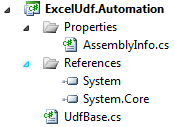
To create your custom functions, you need to create a new C# code library project from Visual Studio, then go to:
Right-click Project > Properties > Build > Register for COM Interop and enable it.
Then go to AssemblyInfo.cs and set ComVisible to true. Then you need to create a base class that you will inherit later to create your UDF:
using System;
using System.Runtime.InteropServices;
using Microsoft.Win32;

namespace ExcelUdf.Automation
{
public abstract class UdfBase
{
[ComRegisterFunction]
public static void ComRegisterFunction(Type type)
{
    Registry.ClassesRoot.CreateSubKey(
        GetClsIdSubKeyName(type, "Programmable"));

    // Solves an intermittent issue where Excel
    // reports that it cannot find mscoree.dll
    // Register the full path to mscoree.dll.
    var key = Registry.ClassesRoot.OpenSubKey(
        GetClsIdSubKeyName(type, "InprocServer32"), true);
    if (key == null)
    {
        return;
    }
    key.SetValue("",
        String.Format("{0}\\mscoree.dll", Environment.SystemDirectory),
        RegistryValueKind.String);
}

[ComUnregisterFunction]
public static void ComUnregisterFunction(Type type)
{
    // Removes the "Programmable" registry key under CLSID
    Registry.ClassesRoot.DeleteSubKey(
        GetClsIdSubKeyName(type, "Programmable"));
}

private static string GetClsIdSubKeyName(Type type, String subKeyName)
{
    return string.Format("CLSID\\{{{0}}}\\{1}",
        type.GUID.ToString().ToUpper(), subKeyName);
}

// Hiding these methods from Excel
[ComVisible(false)]
public override string ToString()
{
    return base.ToString();
}

[ComVisible(false)]
public override bool Equals(object obj)
{
    return base.Equals(obj);
}

[ComVisible(false)]
public override int GetHashCode()
{
    return base.GetHashCode();
}
}
}
Then your UDF class should inherit UdfBase as such:
using System.Runtime.InteropServices;
using ExcelUdf.Automation;

namespace AutomationSample
{
    [ClassInterface(ClassInterfaceType.AutoDual)]
    [Guid("7a9de936-0e99-4d37-9c2b-a02a09fb371f")]
    public class AutomationSample : UdfBase
    {
        public double AutomationSampleAdd(double a, double b)
        {
            return a + b;
        }

        public double AutomationSampleSubtract(double a, double b)
        {
            return a - b;
        }
    }
}
Build your project, then the last step is opening an Excel file, going to: File > Options then selecting Add-Ins. Select “Excel Add-Ins” in the drop-down list and then hit “Go…”. Select the “Automation” button and select your component (in this example, the item name to select is AutomationSample.AutomationSample).
Write =AutomationSampleAdd(1,2) in a worksheet cell and you should get 3.
Automation Add-Ins Method with a Reference to Excel
 (enlarge)
The previous method, mentioned above, allows Excel to call .NET, not the other way around. What if you want to have a reference to the Excel application executing your .NET code? Say to color certain worksheet columns based on some criteria or for an asynchronous callback. In this case, you need to implement the IDTExtensibility2 interface.
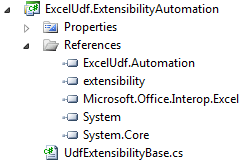
To implement this method, you need to reference the assemblies displayed to the right, inherit the UdfBase abstract class and implement the IDTExtensibility2 interface.
using System;
using ExcelUdf.Automation;
using Extensibility;
using Microsoft.Office.Interop.Excel;

namespace ExcelUdf.ExtensibilityAutomation
{
public abstract class UdfExtensibilityBase : UdfBase, IDTExtensibility2
{
protected Application ExcelApplication { get; set; }

public void OnConnection(object application,
    ext_ConnectMode connectMode, object addInInst,
    ref Array custom)
{
    ExcelApplication = application as Application;
}

public void OnDisconnection(ext_DisconnectMode removeMode,
    ref Array custom)
{
}

public void OnAddInsUpdate(ref Array custom)
{
}

public void OnStartupComplete(ref Array custom)
{
}

public void OnBeginShutdown(ref Array custom)
{
}
}
}
In my download project, I implemented this class in a standalone project rather than combining it with the existing one. The reason is that this approach requires references to a specific version of the Excel interop component. Once you have these references, your deployment grows in complexity, as you now need to manage more dependencies and make sure that the right referenced version of Excel is installed on the target machine (check NetOffice (new tab) if you want to avoid that).
To create your UDF methods and to have a reference to the current Excel instance:
using System.Runtime.InteropServices;
using ExcelUdf.ExtensibilityAutomation;

namespace ExtensibilitySample
{
[ClassInterface(ClassInterfaceType.AutoDual)]
[Guid("7a9de936-0e99-4d38-9c2b-a02a09fb371f")]
public class ExtensibilitySample : UdfExtensibilityBase
{
    public double ExtensibilitySampleAdd(double a, double b)
    {
        return a + b;
    }

    public string WhoAreYou()
    {
        string name =
           ExcelApplication.Application.InputBox("Who are you?");
        if (string.IsNullOrWhiteSpace(name))
        {
            return string.Empty;
        }
        return "Hello " + name;
    }
}
}
Use this project with Excel as mentioned above.
XLL Add-Ins Method
 (enlarge)
An XLL is an add-in for Excel that you can build with any compiler that supports building native DLLs (dynamic link libraries), and it has been supported since Excel 97. It is faster than the Automation Add-Ins and has more features, but XLL components are usually built via C/C++.
Luckily for .NET, there is an open source component with a permissive license called Excel DNA (new tab) that allows .NET to build XLL add-ins effortlessly.
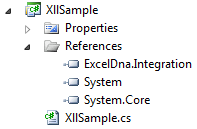
To build an XLL component, create a new project, download Excel DNA (new tab) and reference ExcelDna.Integration.dll then write your functions:
using ExcelDna.Integration;

namespace XllSample
{
    public class XllSample
    {
        [ExcelFunction(Description = "Adds two numbers",
                Category = "XLL with .NET Sample Function")]
        public static double XllSampleAdd(double a, double b)
        {
            return a + b;
        }
    }
}
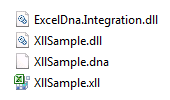
Build, then create a file called YourDllName.dna, in this case XllSample.dna with the following content:
<DnaLibrary RuntimeVersion="v4.0">
	<ExternalLibrary Path="XllSample.dll" />
</DnaLibrary>
 (enlarge)
Drop it next to your DLL, then copy ExcelDna.xll or ExcelDna64.xll next to your DLL and rename it to match your DLL name, in this case XllSample.xll.
Build your project, then the last step is opening an Excel file, going to: File > Options then selecting Add-Ins. Select “Excel Add-Ins” in the drop-down list and then hit “Go…”. Select the “Browse” button and select your XllSample.xll.
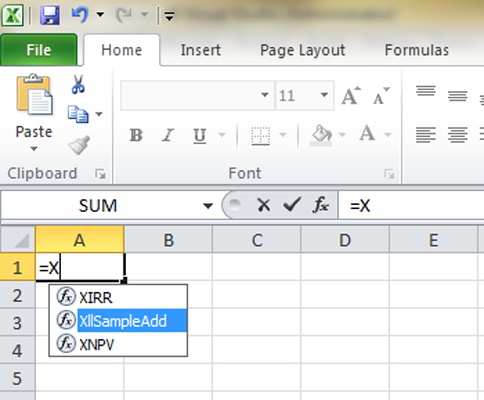
In an Excel cell, start typing XllSampleAdd and you will get the rest of the function via Excel’s autocomplete.
Comparison
Here is a comparison table between the two methods:
| Automation Add-Ins | XLL Add-Ins | |
|---|---|---|
| Minimum Supported Version | Excel 2002 | Excel 97 |
| Performance | Slower | Faster |
| UDF Autocomplete | Not supported | Supported |
| UDF Documentation Tooltip | Not supported | Supported |
| Building in .NET | Easier | Harder (without a 3rd party component) |
Conclusion
Automation Add-Ins support feels as though it was designed with VB6 in mind rather than .NET, and it lacks important features such as autocomplete and a description when typing in a cell.
XLL Add-Ins per se are complicated from a .NET development point of view; however, Excel DNA does an excellent job of making the interface transparent and abstracting away all the fiddly details for .NET developers.
Download
I have created a Visual Studio 2010 project with all the sample code demonstrated above, feel free to use it and distribute it.